


How To Set A Schedule In Meta Ads Using Rules
Before you begin, it’s important to note that Rules run every 30-60 minutes. This matters because if you set a Rule to run during too small of a window – less than 60 minutes – it may miss the Rule!
How to pause/enable Meta Ads during a time period (like Holidays)
- In you Meta Ads account, select the check boxes next to the Campaigns, Ad Sets, or Ads you want to pause or enable.
- Click the dropdown next to More and select Create a new rule
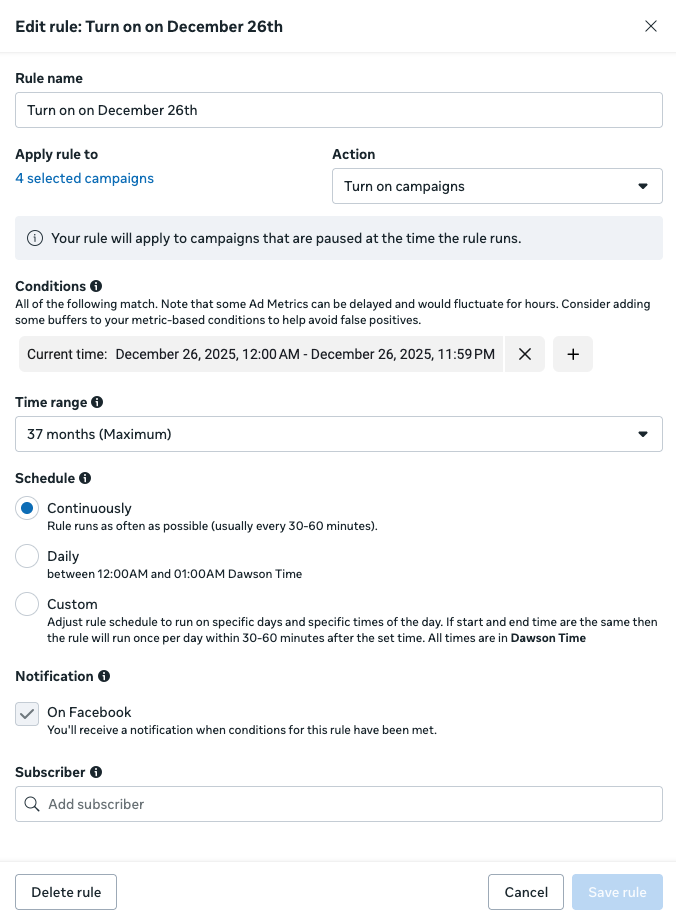
- Give your rule a name to help you remember what it is.
- Set the action to either turn on or turn off your campaign, ad set, or ad.
- Set a Condition → under Time, you’ll find Current Time. Set this to between. Be sure to give it at least a 60-minute window to run the rule, otherwise it might miss running since rules run every 30-60 minutes. I recommend just giving it a full day window.
- The time range won’t matter here; this is only used if you need to set a condition like “If spend >$X in the last Y days…”
- For Schedule, leave this on Continuously.
- It’s up to you whether you want to receive a notification. You may be required to add a Subscriber.
If you’ve done everything correctly it should look like this (your Action may be different):
How to set an ad schedule in Meta Ads using Rules (even when you use a Daily Budget)
There is a workaround since Meta only lets you set a daily schedule if you use a Lifetime budget – and 99% of the time you won’t be using this.
To set an ad schedule even when using a daily budget, follow the same steps as in the previous section on “How to pause/enable Meta Ads during a time period (like Holidays)”. The differences are as follows:
- You will need to make 2 separate Rules: one to turn your ads off and one to turn your ads back on. Set the Action appropriately for each Rule.
- Don’t set a Condition.
- Change Schedule to Custom and set your days and times.
How To Set A Schedule In Google Ads Using Rules
How to set an Ad Schedule
Setting an ad schedule can be very valuable, saving your business from spending on ads during unprofitable times! This is especially true for service-based businesses that might only be able to answer the phone (conversion action) during business hours. (If you haven’t set up call tracking, we recommend WhatConverts).
Check your Ad performance by Day and Hour
Before you set an ad schedule, it’s recommended that you first check what times your business gets conversions. To check this, follow these steps:
- Choose a campaign
- Navigate to Insights and reports → When and where ads showed → When ads showed
- To make this easier to read, rather than doing Day & Hour, I recommend using the dropdown to the right to show Days, then look again at Hours separately.
Use the data here to aid in your decision. Most service businesses will find that the bulk of their conversions come during business hours (if you’re tracking phone calls, someone needs to be available to answer the phone).
Add an ad schedule
To add an ad schedule, follow these steps:
- Choose a campaign.
- Navigate to Campaigns → Audiences, keywords, and content → Ad schedule.
- Click the pencil icon to set your ad schedule.
For service businesses, we recommend setting your ad schedule to business hours only. If you want to run ads outside of business hours too, we recommend adding separate schedules (Ex: M-F 9-5, M-F 12-9, M-F 5-12)
How to automatically pause/enable ads during set dates or time periods (such as Holidays)
Holidays are great – until you work in advertising and have to log in during to the holidays to pause/enable campaigns for every client! Here’s a solution that keeps you from having to work during the holidays!
Follow the steps below:
- Navigate to Tools → Bulk Actions → Rules
- Add a Rule and select the Rule type based on your needs.
- Set Apply to as needed. You can set the Rule to apply to all or some of whatever you choose (campaigns, ads, etc…)
- Add an Action. Click the pencil icon to name your action (eg. Pause during holiday).
- Your Rule will auto-name once you’ve added an action, but you can change your rule to something else if you prefer by clicking the Pencil icon.
- Set Frequency to Once and choose the date and time you want the Rule to begin.
- Save rule.